
 HONG KONG SAUL

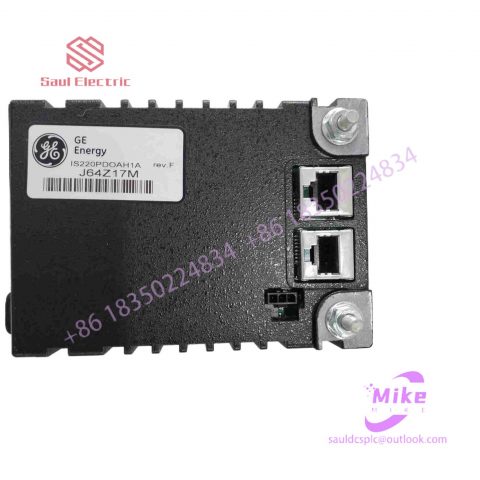
DS200SDCCF0AAA Turbine Control System
DS200SDCCF0AAA Product Introduction
Basic Information
Brand: GE (General Electric)
Model:DS200SDCCF0AAA
Part Number: DS200SDCCF0AAA
Series: Mark VIe Speedtronic Turbine Control System I/O Pack
Country of Origin: United States
Product Type: Discrete Input Module (Contact Input Module), also known as PDIA I/O Pack
contacts: Mike
+86 18350224834 (WeChat/WhatsApp)
Email:Mike18350224834@gmail.com
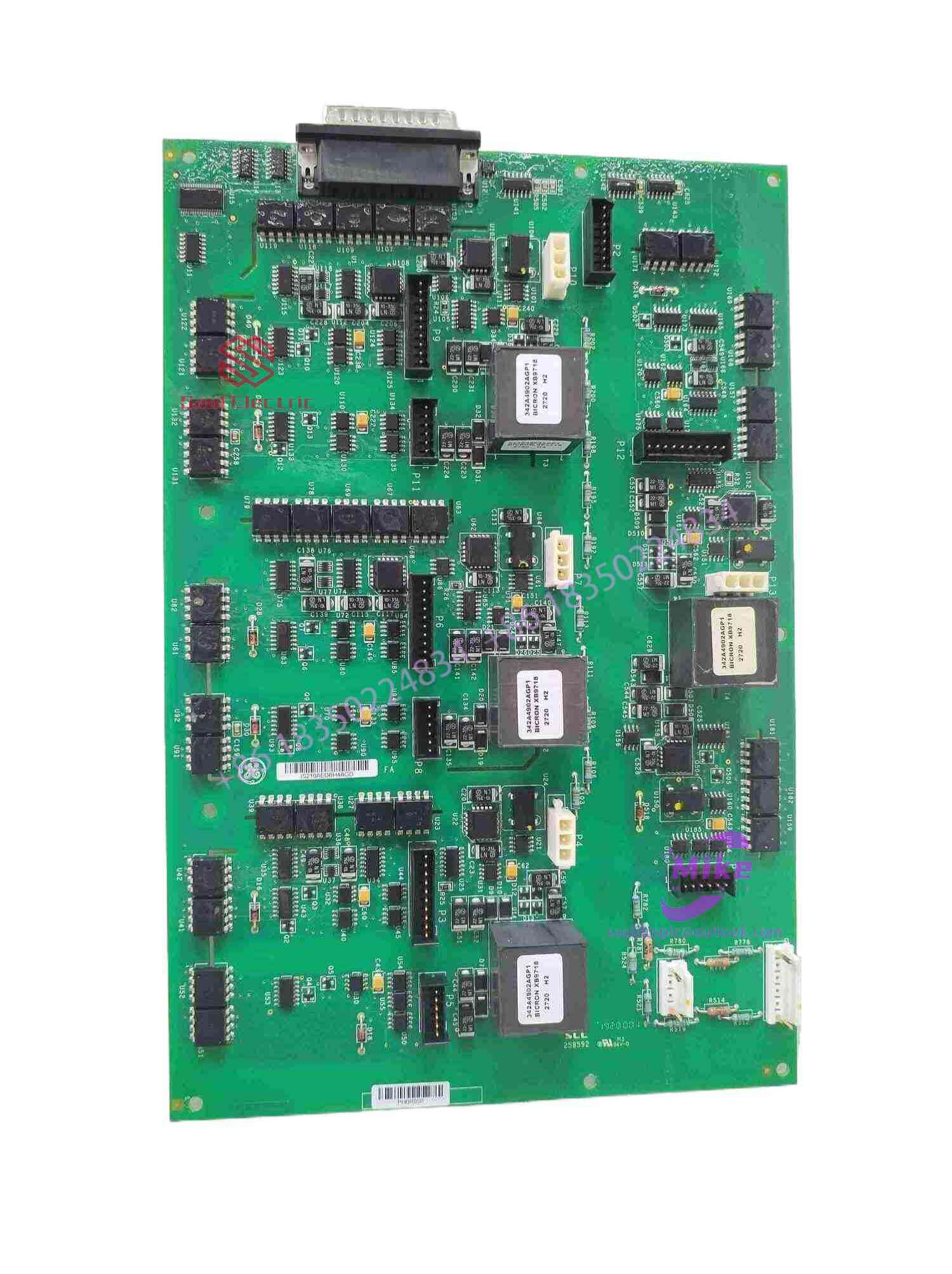 Functional Overview
The DS200SDCCF0AAA is a 24-channel discrete (digital) input module in the GE Mark VIe control system. Its primary function is to collect discrete signals (contact open/close signals) generated by field devices such as sensors,
switches, and relays, convert them into digital signals that can be recognized and processed by the PLC or control system CPU,
and transmit the processed data to the GE Speedtronic turbine control system or other control equipment, enabling automated control and monitoring. Key Technical Specifications
Rated Voltage: 24.0 VDC (Nominal)
Maximum Rated Voltage: 28.6 VDC
Maximum Rated Contact Input Voltage: 32 VDC
Number of Input Channels: 24 Discrete Inputs
Operating Temperature Range: -30°C to +65°C
Environmental Adaptability: Passes rigorous environmental testing, capable of long-term stable operation in harsh industrial environments Compatible Terminal Boards
The DS200SDCCF0AAA can be paired with a variety of GE terminal boards, including but not limited to:
IS200STCIH1A / IS200STCIH2A
IS200STCIH8A
IS200TBCIH2C / IS200TBCIH4C
IS400STCIH1A / IS400STCIH2A / IS400STCIH8A
IS400TBCIH2C Certifications and Safety
This module is UL certified and can be used in both hazardous and non-hazardous locations. The UL certification covers various classes and divisions, and relevant UL mark documents are available for reference.
7. No response to touch after using for a period of time
[Troubleshooting]
A touch screen becomes unresponsive after being used normally for a period of time after being turned on.
[Fault analysis and processing]
1) Check whether the hard disk is set to turn off in the “Display Energy Saving Settings” of Wlndows 9x. The method is to right-click the desktop, select the “Properties” command, then select the “Screen Saver” tab from the dialog box, click the “Settings” button, and set the parameters except “Power Scheme” to “Always On” Except for this, the rest are “never”.
2) In some applications, due to poor grounding performance, the control box shell will be filled with a large amount of static electricity, which will affect the working electric field inside the control box, causing the touch to gradually fail. At this time, use a wire to ground the control box shell and restart.
3) Since the surface of the surface acoustic wave touch screen is covered with sound waves when it is working, if the touch screen is not wiped for a long time, excessive dust accumulation will block the reflection stripes of the waves, causing the touch screen to not work properly. For touch monitors, you can use a clean business card or banknotes to gently wipe away the dust on the surrounding reflective stripes through the gap between the front cover of the monitor and the touch screen, and then restart the computer. For touch all-in-one computers, you can open the front cover of the monitor, use a clean towel to wipe away the dust on the surrounding reflective stripes, and then restart the computer.
4) Many touch all-in-one machine touch screen control boxes take power from the all-in-one machine power supply rather than from the host. Therefore, you should also check whether the 5V output of the all-in-one machine power supply is correct. Sometimes the instantaneous current is too large, causing the fuse to be burned. This The fuse needs to be replaced.
8. Touch screen click accuracy decreases
[Troubleshooting]
On a touch screen, the click accuracy decreases and the cursor is difficult to locate.
[Fault analysis and processing]
1) Run the touch screen calibration program. (Start–Settings–Control Panel–Sound Wave Screen—Caliberate Button).
2) If it is a newly purchased touch screen, please try to delete the driver, then power off the host for 5 seconds and turn it on again to reinstall the driver.
3) If the above method does not work, it may be that the reflection stripes of the sonic screen were slightly damaged during transportation and cannot be completely repaired. You can deviate from the calibration target at an equal distance in the opposite direction (relative to the direction of deviation from the mouse) for positioning.
4) If the sonic screen is inaccurate after being used for a period of time, it may be due to the reflection stripes around the screen or the transducer being covered with dust. If you are using our company’s KA cabinet, you can open the upper cover and use a dry Use a soft cloth dipped in industrial alcohol or glass cleaning fluid to clean the surface, and then run the system again. Note that the upper left, upper right, and lower right transducers cannot be damaged. Then power off, restart the computer and recalibrate.
5) There are water droplets or other soft things stuck to the surface of the touch screen. The touch screen misjudges that there is a hand touch, causing the surface acoustic wave screen to be inaccurate. Just clear it.

There are no reviews yet.