
 HONG KONG SAUL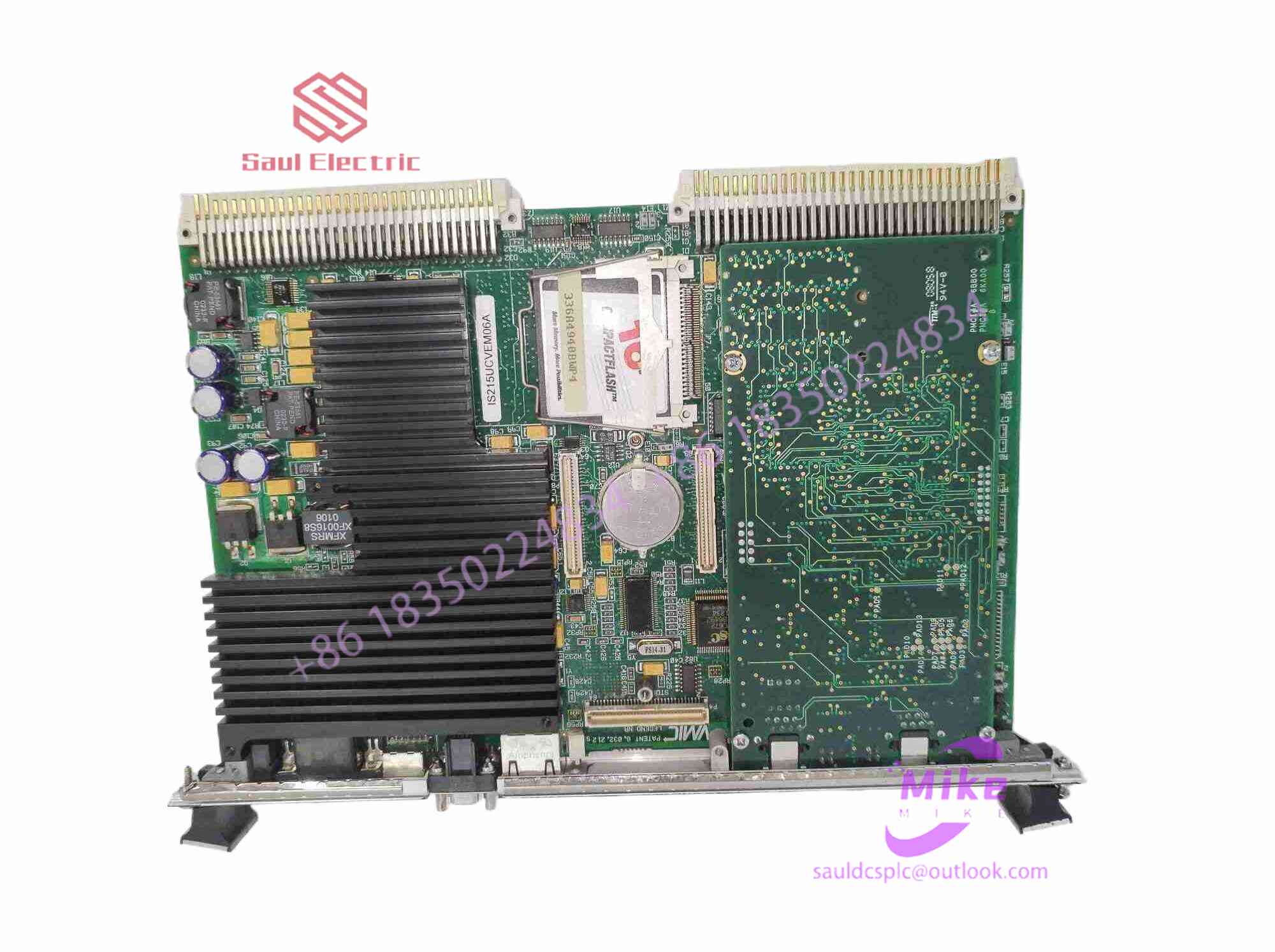
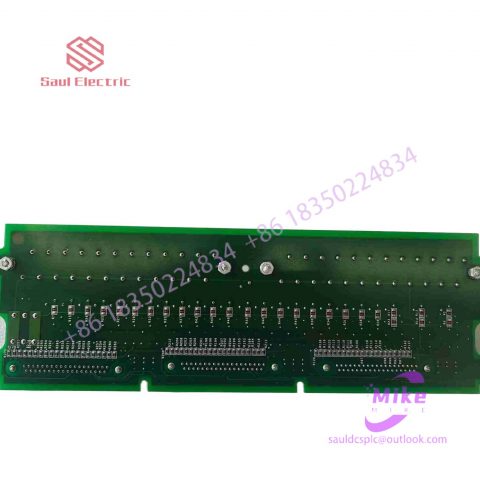
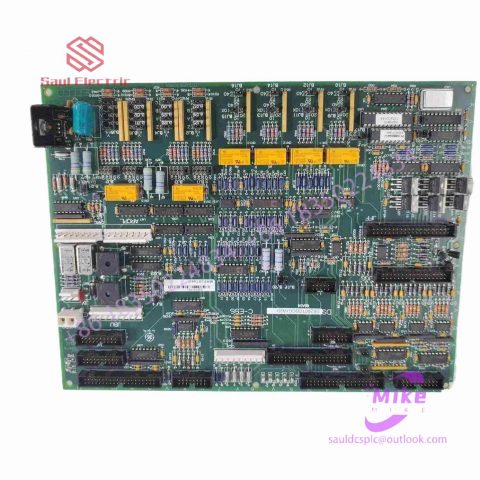
IS200EXAMG1A integrated circuit board
IS200EXAMG1A Product Introduction
Basic Information
Brand: GE (General Electric)
Model:IS200EXAMG1A
Part Number: IS200EXAMG1A
Series: Mark VIe Speedtronic Turbine Control System I/O Pack
Country of Origin: United States
Product Type: Discrete Input Module (Contact Input Module), also known as PDIA I/O Pack
contacts: Mike
+86 18350224834 (WeChat/WhatsApp)
Email:Mike18350224834@gmail.com
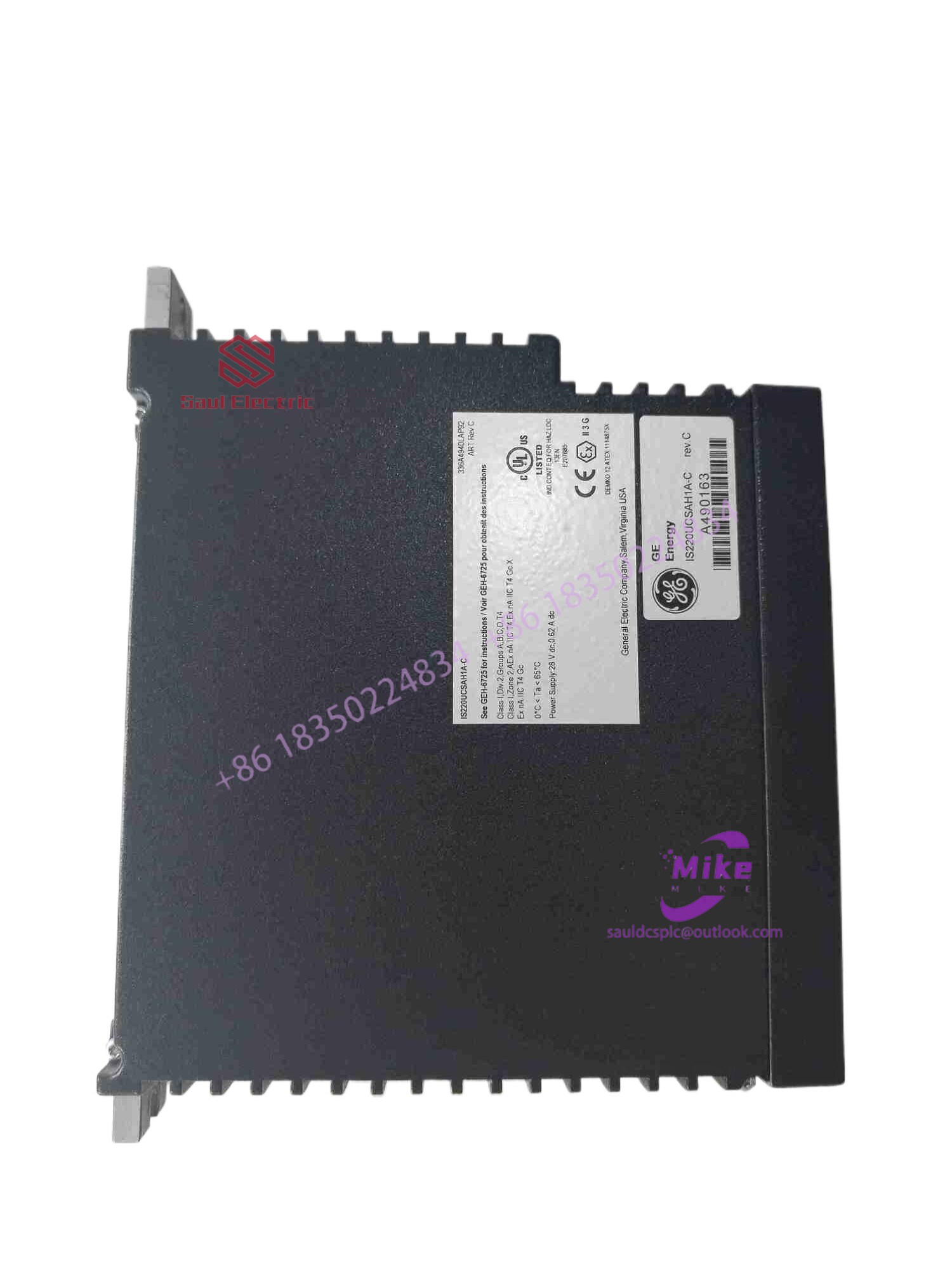 Functional Overview
The IS200EXAMG1A is a 24-channel discrete (digital) input module in the GE Mark VIe control system. Its primary function is to collect discrete signals (contact open/close signals) generated by field devices such as sensors,
switches, and relays, convert them into digital signals that can be recognized and processed by the PLC or control system CPU,
and transmit the processed data to the GE Speedtronic turbine control system or other control equipment, enabling automated control and monitoring. Key Technical Specifications
Rated Voltage: 24.0 VDC (Nominal)
Maximum Rated Voltage: 28.6 VDC
Maximum Rated Contact Input Voltage: 32 VDC
Number of Input Channels: 24 Discrete Inputs
Operating Temperature Range: -30°C to +65°C
Environmental Adaptability: Passes rigorous environmental testing, capable of long-term stable operation in harsh industrial environments Compatible Terminal Boards
The IS200EXAMG1A can be paired with a variety of GE terminal boards, including but not limited to:
IS200STCIH1A / IS200STCIH2A
IS200STCIH8A
IS200TBCIH2C / IS200TBCIH4C
IS400STCIH1A / IS400STCIH2A / IS400STCIH8A
IS400TBCIH2C Certifications and Safety
This module is UL certified and can be used in both hazardous and non-hazardous locations. The UL certification covers various classes and divisions, and relevant UL mark documents are available for reference.
How does ABB robot multi-task? Detailed steps on how to use ABB robot multitasking
1.ABB robots support multi-tasking (each robot body can support up to one motion task).
2. To use multi-tasking, the robot must have the 623-1 mulTItasking option
3. How to create a new multi-task?
4. Control panel, configuration
5.Theme controller
6. Enter the task and create a new one
At this time, it must be set to normal, otherwise programming cannot be performed. After all programming and debugging are completed, set it back to semi staTIc and it will start running automatically.
7. Restart
8. The program editor enters t2 task.
9. How to transfer data between multiple tasks? The following takes the bool amount flag1 transferred between tasks as an example (that is, if any task modifies the flag1 value, the flag1 value of the other task is also modified)
10. Both the front-end and the back-end must create data. The storage type must be a variable with the same type and the same name, for example:
Pers bool flag1
That is to say, both tasks must have this flag1, and it must be a variable variable.
11. In t2, the code is as follows
12. The foreground task code is as follows
The above can realize the background task to scan the di_0 signal in real time. If the di_0 signal changes to 1, flag1 is true. According to logic, the front desk waits for flag1 to be true. After executing waituntil, set flag1 to false
13. How to run?
Click on the bottom one in the lower right corner of the teach pendant, make sure both tasks are checked, and then run it. You can test it.
14. There is no problem in the test. Enter the configuration interface, change t2 to semi staTIc, and restart. At this time, t2 cannot be selected and it has started running automatically.
Analysis of ABB Robot Simulation Technology
The competitive pressure in the industrial automation market is increasing day by day, and customers are demanding higher efficiency in production to reduce prices and improve quality. Spending time testing or commissioning a new product at the beginning of a new product is not feasible today because it would mean stopping existing production to program the new or modified part. ABB’s RobotStudio is built on ABB VirtualController. We can use it to easily simulate the on-site production process on the computer, allowing customers to understand the development and organization of the production process.
robotstudio features:
1. CAD import
RobotStudio can easily import data in various mainstream CAD formats, including IGES, S TE P, VRML, VDAFS, ACIS and CA TI A, etc. Robot programmers can use these precise data to program robots with higher accuracy, thus improving product quality.
2. Automatic path generation
One of the most time-saving features in RobotStudio. By using a CAD model of the part to be processed, this function can automatically generate the robot position (path) needed to track the machining curve in just a few minutes, a task that would normally take hours or even days.
3. Program editor
The program editor (Program Maker ) can generate robot programs, allowing users to develop or maintain robot programs offline in a Windows environment, which can significantly shorten programming time and improve program structure.
4. Path optimization
The Simulation Monitor is a visual tool for robot motion optimization, with red lines showing where improvements can be made to make the robot operate in the most efficient way.
5. Automatically analyze stretching ability
Users can use this function to move the robot or workpiece arbitrarily until all positions are accessible, and the work cell floor plan verification and optimization can be completed within minutes.
6. Collision detection
Collision detection function can avoid serious damage caused by equipment collision. After selecting detection objects, RobotStudio can automatically monitor and display whether these objects will collide when the program is executed.
7. Online homework
Use RobotStudio to connect and communicate with real robots, and perform convenient monitoring, program modification, parameter setting, file transfer, backup and recovery operations on the robot.

There are no reviews yet.