
 HONG KONG SAUL
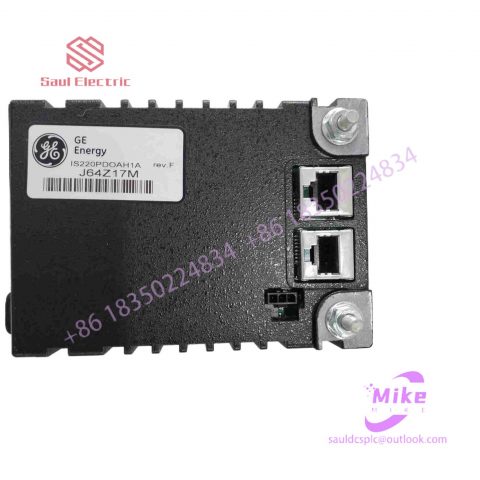
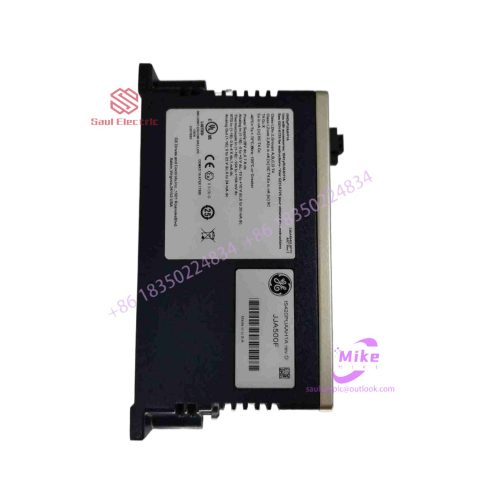
IS200JPDVG1A Mark VIe Speedtronic
IS200JPDVG1A Product Introduction
Basic Information
Brand: GE (General Electric)
Model:IS200JPDVG1A
Part Number: IS200JPDVG1A
Series: Mark VIe Speedtronic Turbine Control System I/O Pack
Country of Origin: United States
Product Type: Discrete Input Module (Contact Input Module), also known as PDIA I/O Pack
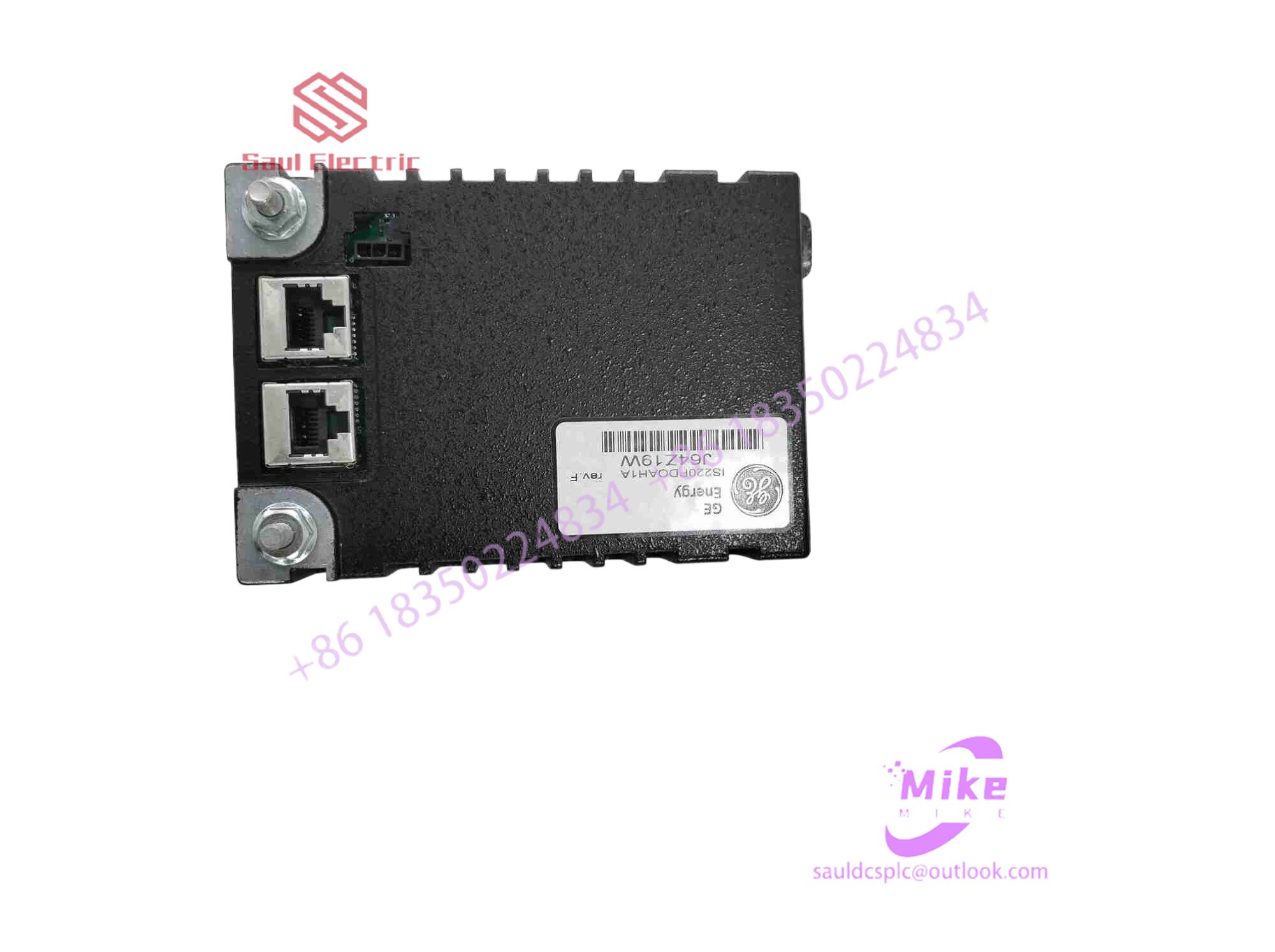 Functional Overview
The IS200JPDVG1A is a 24-channel discrete (digital) input module in the GE Mark VIe control system. Its primary function is to collect discrete signals (contact open/close signals) generated by field devices such as sensors,
switches, and relays, convert them into digital signals that can be recognized and processed by the PLC or control system CPU,
and transmit the processed data to the GE Speedtronic turbine control system or other control equipment, enabling automated control and monitoring. Key Technical Specifications
Rated Voltage: 24.0 VDC (Nominal)
Maximum Rated Voltage: 28.6 VDC
Maximum Rated Contact Input Voltage: 32 VDC
Number of Input Channels: 24 Discrete Inputs
Operating Temperature Range: -30°C to +65°C
Environmental Adaptability: Passes rigorous environmental testing, capable of long-term stable operation in harsh industrial environments Compatible Terminal Boards
The IS200JPDVG1A can be paired with a variety of GE terminal boards, including but not limited to:
IS200STCIH1A / IS200STCIH2A
IS200STCIH8A
IS200TBCIH2C / IS200TBCIH4C
IS400STCIH1A / IS400STCIH2A / IS400STCIH8A
IS400TBCIH2C Certifications and Safety
This module is UL certified and can be used in both hazardous and non-hazardous locations. The UL certification covers various classes and divisions, and relevant UL mark documents are available for reference.
Common faults encountered by touch screens and corresponding solutions
I believe that many people have encountered situations where the touch screen cannot be used due to malfunction when using the touch screen. This is mainly because the touch screen is a relatively sophisticated device. In addition, the touch screen is mostly open to the public. It is used frequently and the quality of the users varies, resulting in frequent faults. Here are some common faults of the touch screen. Solutions and maintenance methods:
When the touch screen fails, you should first check whether the power supply of the control card is normal, whether the Windows driver is installed normally, and then check whether the touch screen calibration under Windows is completed and whether the parameters in “Touchscreen Control” are correct. You also need to check whether the serial port is normal and Is the serial port cable connected properly?
The following uses some examples to illustrate the diagnosis and treatment methods of touch screen faults.
1. The touch screen is not accurate
[Troubleshooting]
For a surface acoustic wave touch screen, the corresponding operation cannot be completed normally by touching the part of the display screen with your finger.
[Fault analysis and processing]
This phenomenon may be that after the sonic touch screen has been used for a period of time, the reflective stripes around the screen are covered with dust. You can wipe it with a dry soft cloth, then cut off the power, restart the computer, and recalibrate. It is also possible that the reflective stripes of the sound wave screen are slightly damaged, and if this happens it will not be completely repairable.
If it is a capacitive touch screen, you can run the screen calibration program under the following circumstances: (Start–Programs–Microtouch Touchware)
1) Complete the installation of the driver software for the first time.
2) After every time you change the resolution or display mode of your monitor.
3) Each time the displayed display area is changed.
4) After adjusting the frequency of the controller each time.
5) Every time the cursor and the touch point cannot correspond.
After calibration, the calibrated data is stored in the controller’s register, so there is no need to calibrate the screen every time the system is started.
2. The touch screen is unresponsive
[Troubleshooting]
One touch screen does not work and does not respond to any touch.
[Fault analysis and processing]
First check whether each wiring interface is loose, and then check whether there is a conflict between the serial port and interrupt number. If there is a conflict, adjust the resources to avoid the conflict. Then check whether there are cracks on the surface of the touch screen. If there are cracks, replace them in time. You also need to check whether there is dirt on the surface of the touch screen. If there is any dirt, use a soft cloth to remove it. Observe and check whether the indicator light on the control box is working normally. When normal, the indicator light is green and flashes.
If the above parts are normal, you can use the replacement method to check the touch screen. First replace the control box, then replace the touch screen, and finally replace the host.
If it is a surface acoustic wave touch screen, you can perform the following maintenance:
If it is a resistive touch screen, you can perform the following maintenance:

There are no reviews yet.